Showing posts with label Next steps. Show all posts

Tuesday, June 23, 2015

My 1st Year as a 1-to-1 Teacher


June 22, 2015:

First, a disclaimer. I am certain that there are other teachers out there who have used their laptops more effectively than I have this year. You should find those teachers, talk to them, and pay attention to what they have to say.

Also, I'm intentionally not going to talk about the fancier stuff like Nearpod and Socrative and Blendspace that Chris covers in his trainings. Those are all excellent and you should definitely check them out. My focus is going to be on more of the nitty gritty tools that I've found myself using this year.

What I have to offer is a reflection on what tools I used this year and practical thoughts on how to use them. I don't know about other teachers, but it took me a little while to figure out the ramifications and effects of using laptops in the classroom on a regular basis. I still haven't figured it out, but I will share what I can, with the caveat that there is almost certainly a better way to do it that I haven't figured out yet and if you have, I'd appreciate you sharing.

The web tools and how I used them in year one of 1-to-1:

The primary tools I used this year were:


Because things are getting a little tl:dr here, I'll start with Google Classroom and make later posts for the others.

Google Classroom:

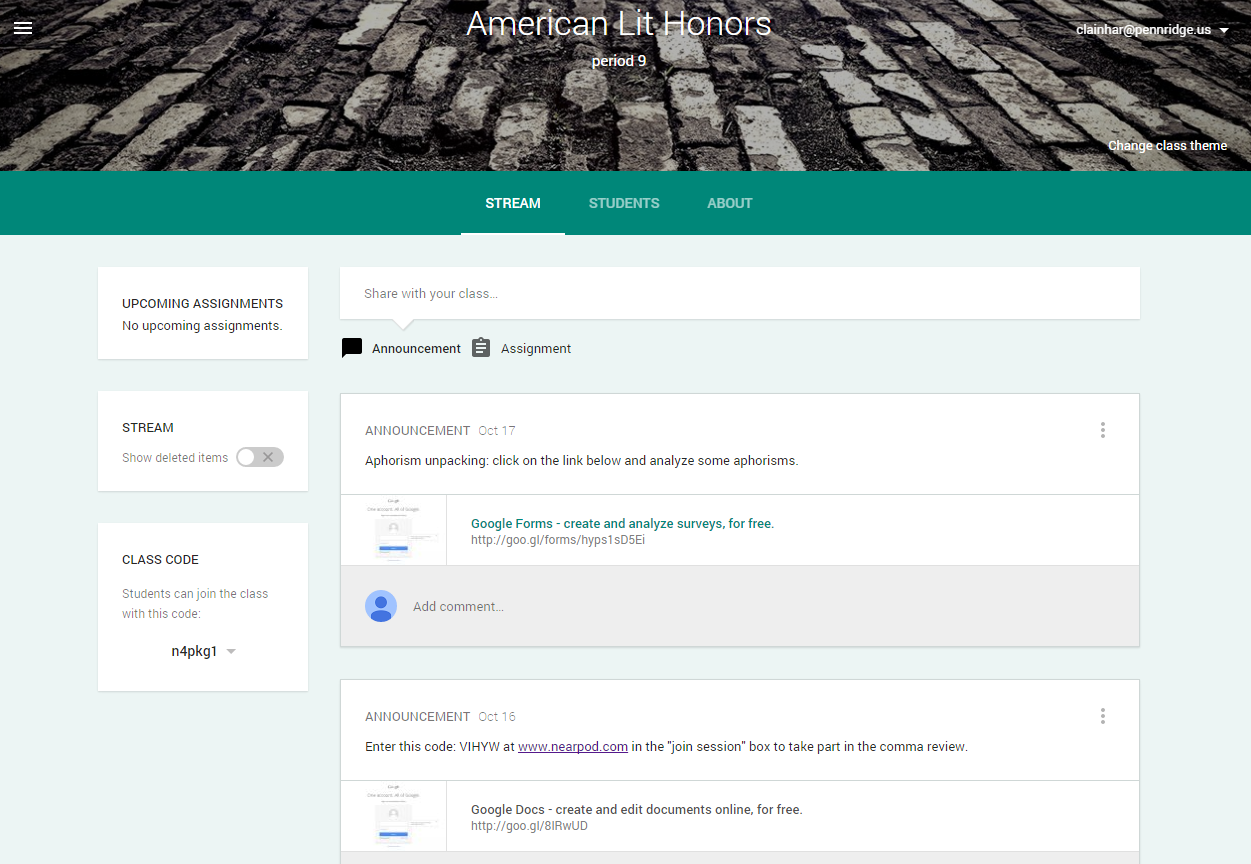
I decided to go with Classroom over Edmodo because of its integration with Google Drive, which is undoubtedly part of their master plan. It lacks the fancy apps that Edmodo has, but what it does, it does well. And with the use of add ons like "Flubaroo" it can be made to do some powerful things . . . 

Part 2: Remind.com (My 1st Year as a 1-to-1 Teacher)


June 22, 2015

Remind.com was the revelation of the year for this teacher. I resisted it at first because I thought it was too much about taking responsibility off of the students, etc. But, as with every tool, it comes down to how you as a teacher apply it, and it ended up making life much easier and more organized on my end and for the students too.

Setup is simple. The teacher makes a class on the website, it generates a code, the students can text the code to the phone number 81010, they get a reply asking for a name, they input their name and it's off and running. To keep track of things better, ask your students not to use any kind of fake name. If they have privacy concerns, I let them use their first name and last initial, but no "Squidward" or "Xena" names.They then receive text messages with the reminders sent by the teacher, but they receive texts from Remind.com, not from the teacher's personal cell phone.

Students can also submit their email addresses to get reminds at their email accounts if they don't want to get texts from their teacher. There is also a smart phone app for Remind.

For this teacher, Remind totally replaced writing assignments on the board, which I wasn't that good about to begin with. The most useful feature was that I could schedule reminders to be sent (ahead of time)--for instance automatically sending a message two days before an assignment is due and then again the day before.

The reminders also support file attachments and links, so teachers can also include supplemental materials.

Part 3: Evernote (My 1st Year as a 1-to1 Teacher)


June 23, 2015:

For research in English class, Evernote has been insanely useful. It has completely freed this teacher from the tyranny of piles of index cards, etc. Full disclosure, I actually pay for the premium version to use in my personal life, but all features discussed here are part of the free accounts.

Evernote has many applications, but at its most basic, it is a filing cabinet to store and organize information in the cloud. There is an app for Evernote. There are a number of associated apps like Penultimate and Scannable. There is also an "Evernote web clipper" which is an extension for Chrome and Firefox that allows users to "clip" articles from the web directly into Evernote. Also, there is another plugin called "Clearly" that cleans up and simplifies the formatting of a web page to make it easier to read. And there is much, much more.

For detailed information on how this teacher used Evernote in class this year, keep reading . . . 

Part 4: Turnitin.com (My 1st Year as a 1-to-1 Teacher)


June 23, 2015:

Turnitin.com is known for it's plagiarism busting skills. In truth, I've never been sure if it's that much better than some well-placed Google searches. But I have found its online editing tools to be invaluable when it comes to paper grading time.

This is going to be a shorter post, but the main point is that I find that I've converted over from never grading papers on the computer to preferring grading on the computer because of Turnitin.

The thing that convinced me is efficiency. Have you ever done the math? If you have 120 papers to grade and each takes 10 minutes, that's 20 hrs of grading per project (1200 minutes). Turnitin doesn't make that go away, but it makes things much more efficient . . . 

Thursday, October 30, 2014

Using Add-ons in Google Drive


Google Drive Add-ons: 

Google Drive users now have the ability to incorporate "Add-ons" to add features to various Google Apps. One of the most useful is the "Easy Bib" add-on.

To install an Add-on, open a blank Google document and then click on "Add-ons" (highlighted in yellow above) and then "get add-ons." That will take you to a mind-boggling array of options. Almost all of them operate on the "freemium" model, which means they provide some basic features for free and offer additional features for a cost.


Once EasyBib is installed it will be available in all Google documents that the user edits in the future. To open EasyBib, click on "Add-ons," "EasyBib," and then "Manage Bibliography" (even if it's your first entry).

At that point, a sidebar opens and the author can enter a book or journal title or a website address and, in most cases, it will automatically create a works cited entry. The author can choose between MLA, APA, or Chicago styles. The example below is from a source found on "Google Books."


As previously stated, there are a huge number of options for add-ons. there are flow chart designers, mind map makers, formula editors, translators, rhyme makers, and much, much more. If you find one that is particularly useful, feel free to post it in a comment below.

Friday, October 24, 2014

New editing features in Google Docs


Click on pic for more detailed view

Making edits as "suggestions":

Google has added an interesting new editing feature to Google Docs. It's always been possible to add comments to documents--that's what the yellow highlighted elements above are showing--but it's now possible to edit the paper but have those edits show up as "suggestions" in green.

The function is similar to the editing/change tracking features in Word, but is actually much lighter and simpler to use. Any time the editor makes a change in the paper, a box appears in the sidebar that automatically explains the change that the editor made. The edit also appears in green font in the text itself.


Tuesday, September 30, 2014

Google Classroom--An Edmodo Competitor?


Google Classroom is Google's new foray into the education market. Others like Edmodo have been there much longer and are more firmly entrenched. Right now, if you already use Edmodo, it is this author's opinion that switching to Classroom probably isn't worth it.

However, if you're looking to move beyond your static classroom webpage, Classroom is a fairly simple option. You can find it at classroom.google.com.

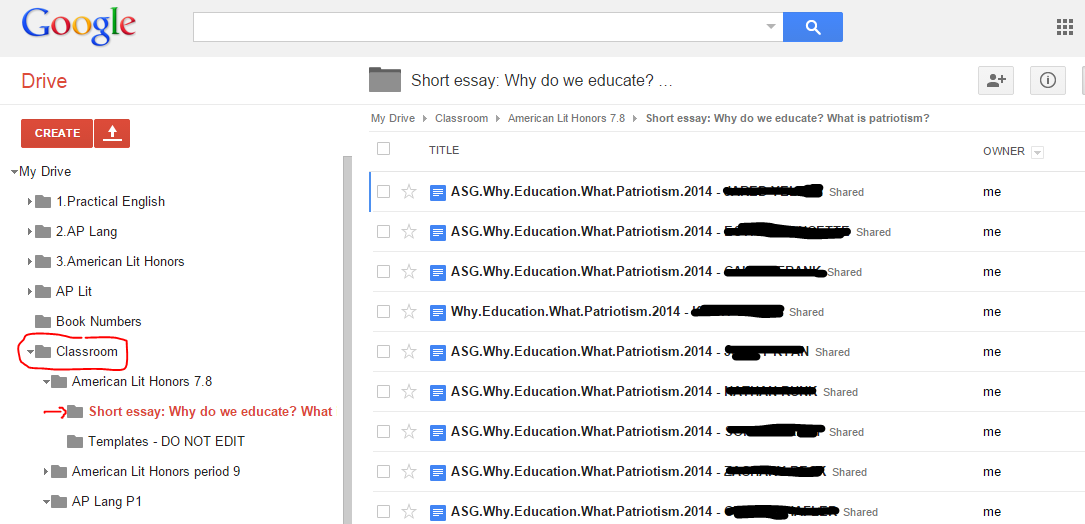
Above is a screenshot of the Classroom news feed. There, teachers can make announcements, post links, and post assignments. The advantage Classroom does have is its tight integration with Google Docs. If a teacher uses the "assignment" option in Classroom (for more information click here), Classroom automatically creates a folder in the teacher's Drive account. When the students turn in their assignments on Docs, the file automatically goes into the correct folder.


That automatic filing is a significant step up from using the "Shared with me" window in Drive and then manually sorting files into folders from there.

Wednesday, December 4, 2013

Tip #3--Revision history and tracking changes

Note the revision history sidebar on the right

Depending upon what sharing permissions are set by the document owner, any document editor can access the revision history by clicking on "file" and then "see revision history."  It's advisable for teachers to require that students set sharing permissions as "can edit" for the classroom instructor, so that teachers can then view all necessary information.  Directions on how to do that are located here in the Google Docs help center.

Being able to see revision history is useful in multiple ways.  It allows teachers (and other collaborators) to see what changes have been made by what users.  It can allow teachers an easy way to see what revisions (if any) students have made to their documents throughout the writing process.  Depending upon the edit, the change will often appear in different colors.  In the above picture, Feb. 4, 3:21 PM shows that "clainhar" replaced a lower case "p" with an upper case "P."

In the event of essay rewrites or project "do overs," the teacher can quickly see what additions and changes students have made.  The "show more detailed revisions" button at the bottom of the revision history sidebar allows teachers to delve even more deeply.

In addition, revision history makes it easy to see when students have submitted their assignments.  This could allow teachers to set one deadline for all students and to know definitively who has met the deadline and who hasn't.

Tuesday, June 11, 2013

Tip #8--Using Google Groups to promote student writing


Google Groups is Google's take on an aspect of the web that's been around for as long as the Internet--discussion boards.  It is not fancy, but it can provide you with a great way to engage students in some informal writing and to engage them in discussion with each other about class concepts.

In the example above, AP English students have been asked to debate the issue of man's role in global warming.  You might ask, why don't I just have them do this in a Google document?  And the answer is that you could.  However, it does open up some possible problems, especially when dealing with young folks who don't always make the best decisions.  Since everyone who is sharing the document can edit it as they like, which could enable some ne'er-do-well to engage in electronic vandalism. Sure, you should be able to catch the culprit using revision history, but if someone were smart enough to lift another student's log in information, it might be hard to track down the true culprit.

Google Groups allows you as the instructor finer control over what is posted and even provides content filtering and the ability to flag for moderation posts that may be inappropriate .  It can be somewhat complicated to set up, however, but once it's done, it can be a very effective tool for student writing.

Mostly, though, the students become very motivated by the opportunity to engage with and comment on each other's ideas. It can often result in very animated, but moderated, discussions.

Sunday, February 5, 2012

Tip #7-Flipping the Classroom

The concept of flipping the classroom is a hot topic in education at the time this blog post is being written.  Largely pioneered by a website called "The Khan Academy," to "flip" the classroom means to record and store lessons online, to assign students to view them before the next class, and to spend class time helping the students apply what they've learned.  It's called "flipped" because it takes the traditional model of teaching a topic in class and sending the kids home to work on it, and reverses it.

The theory is that instead of sending kids home to grapple alone with what you've taught them, teach them "at home" and then work with them in school to develop their skills.  Below is my first stab at trying this technique.  It is a PowerPoint of background information about Macbeth with narration that I converted to a movie and uploaded to Google Docs, as well as posting it on the blog below.  To share it with the students, I will email them a link from the Google Docs share function:


Full disclosure:  The PowerPoint/video above was made using Microsoft Office 2010 because Office 2007 does not have the ability to save files to video (unless you purchase a third party add on).  Keynote, for Mac, does support saving presentations as video files and has for quite awhile.